Component Tool
The advComponent Tool manages named component sets (vertices, edges, or faces) stored as componentTags on a mesh. Open it from the ACT shelf button.
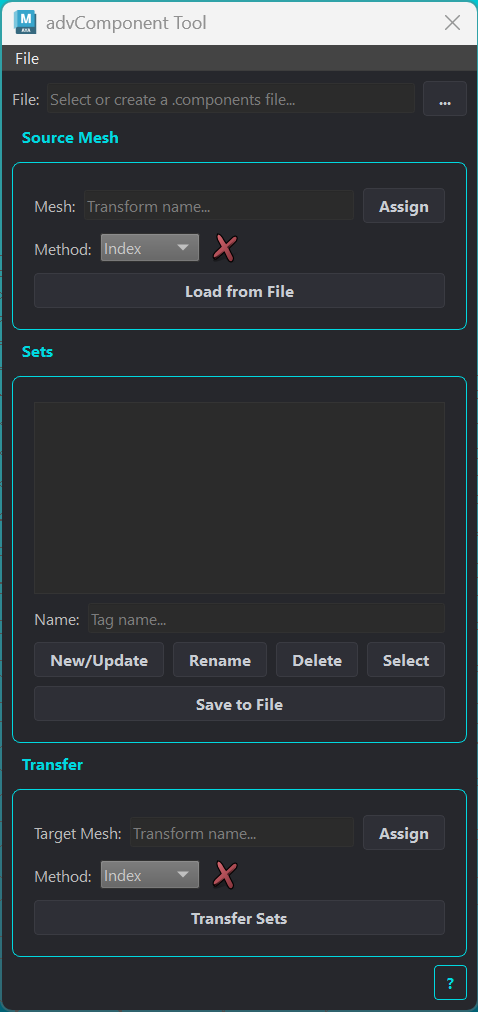
Component selections such as eyelid vertex rings or mouth face regions are tedious to rebuild when a mesh changes topology or when the same regions are needed on a different character. This tool saves sets to a .components file and remaps them onto other meshes using UV, Topology, or Index methods, so a selection authored once can follow the mesh anywhere.
File and Source Mesh
Element |
Description |
|---|---|
File |
The |
Mesh |
The source mesh whose sets you are editing. Click Assign to set it from the current selection. |
Method |
Mapping method used when loading sets from file onto the source mesh. The status icon shows compatibility with the file’s vertex count. |
Load from File |
Imports all sets from the file as componentTags on the source mesh. If a set name already exists on the mesh, a conflict dialog lists them; checked names are overwritten, unchecked names are kept. |
Sets
Element |
Description |
|---|---|
Sets list |
All componentTags on the source mesh. The icon indicates the component type (vertex, edge, or face). Double-click an entry to select its components. |
Name |
The tag name used by New/Update and Rename. Clicking a list entry fills this field. |
New/Update |
Creates a tag from the current component selection, or overwrites the tag of the same name. |
Rename |
Renames the highlighted tag to the value in the Name field. |
Delete |
Deletes the highlighted tag from the mesh, with confirmation. |
Select |
Selects the highlighted tag’s components. |
Save to File |
Writes all componentTags on the source mesh to the |
Transfer
Element |
Description |
|---|---|
Target Mesh |
The mesh to receive the sets. Click Assign to set it from the current selection. |
Method |
Mapping method between the file data and the target mesh. The status icon shows compatibility. Index requires matching vertex counts. |
Transfer Sets |
Opens a checklist of the source mesh’s sets (all checked by default), then remaps the chosen sets onto the target mesh as componentTags. |
Warning: Transfer reads set data from the
.componentsfile, not from the source mesh directly. Click Save to File first if you have unsaved changes on the source mesh.
Batch Components
Batch operations are available from the File menu in the Component Tool.
Batch Export Components
Exports component sets from multiple meshes to .components files.
Element |
Description |
|---|---|
Directory |
Output folder for all |
Mesh list |
All meshes with componentTags found in the scene. Check or uncheck rows to include or exclude them. |
Export Files |
Exports all checked meshes. |
Batch Import Components
Imports component sets from .components files onto matching meshes.
Element |
Description |
|---|---|
Directory |
Folder to scan for |
Entry list |
One row per |
Interpolation Method |
Per-entry method. Index requires matching vertex counts. |
Import Files |
Runs the import for all entries. |